 SHENDZO
Product photography
How to add a natural-looking shadow to a product photo
Start beside the base of the object. Follow the light you can see on the product.
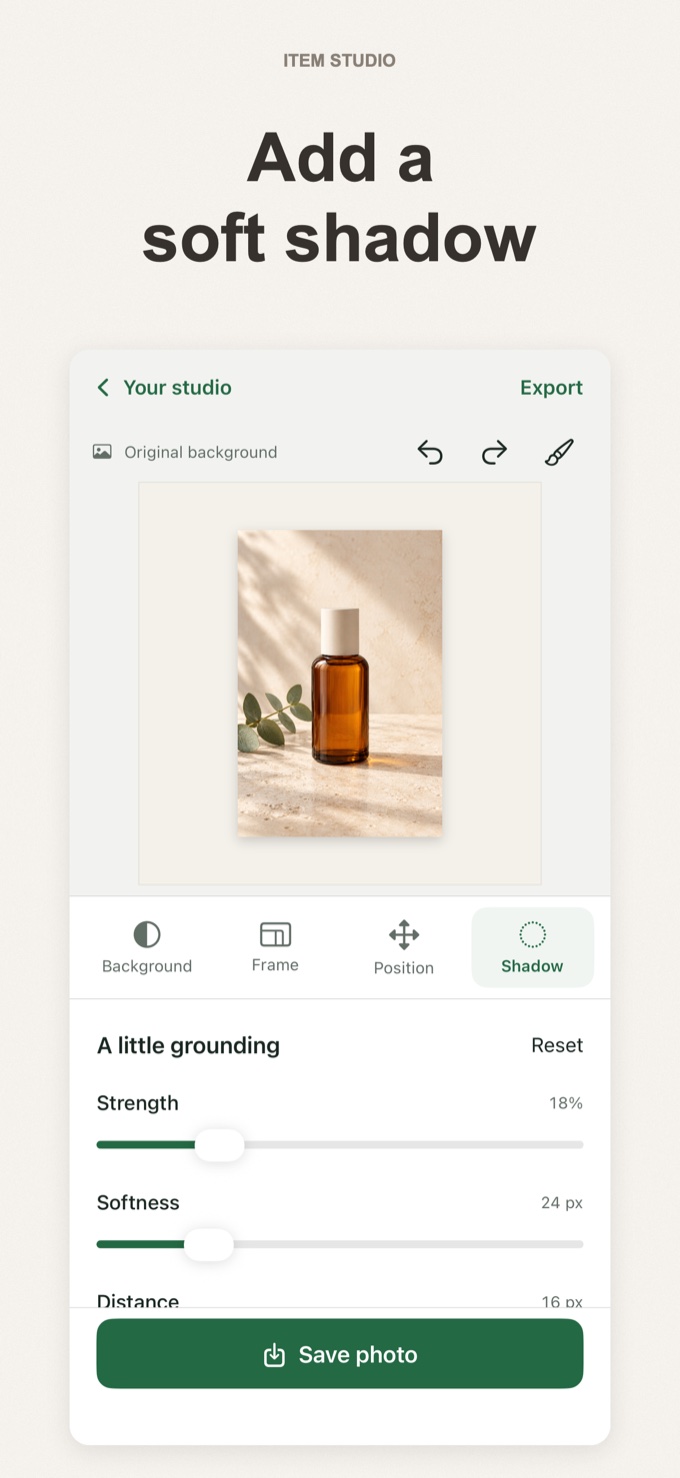
After the background is removed, a box can look as if it’s floating. A small shadow near the base makes it feel grounded. Look at which face is lit before deciding which way the shadow should fall.
Adjust distance and softness
Keep the shadow close to the base and soften it a little. At thumbnail size your eye should go to the label or the product’s shape. Turn the shadow down if the dark patch is the first thing you notice. Some marketplaces specify a shadow-free background.
Our app Item Studio lets you place the cutout on a new background and adjust its shadow. Compare two versions beside one another before exporting.
Item Studio