 SHENDZO
How to record expenses and check your total in Daily Ledger
You can enter cash and card purchases by hand in Daily Ledger. Try it with three purchases, then check the total against your receipts.
-
Choose your currency
For a new ledger, open Settings, then Main currency. Choose the currency you pay in before you add your first expense or set a monthly limit. This example uses US dollars (USD).
-
Record your first purchase
In the Ledger tab, tap Add expense. For a $12.50 lunch, enter 12.50, choose Food and check the date. Add “Coffee and lunch” in the note field so you can search for it later. Tap Save.
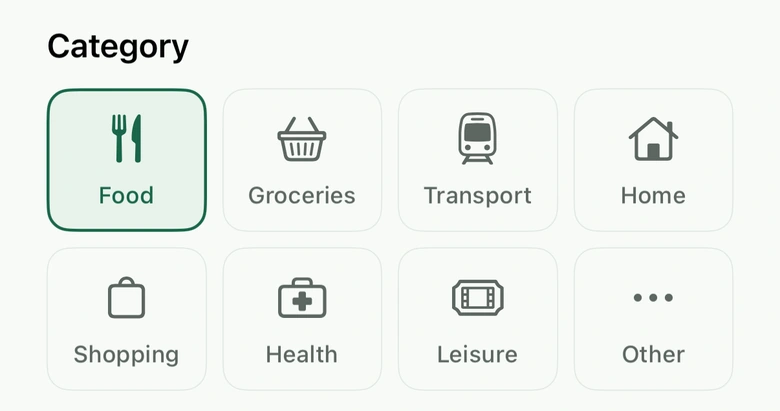
Food, marked with a fork and knife, is selected for the lunch receipt. -
Add two more purchases and check the total
Record an $8.00 ride under Transport and a $24.90 supermarket trip under Groceries. In the ledger, select the month of the purchases. If these are the only three entries, the total at the top should be $45.40. You can check each entry by date under Transactions.
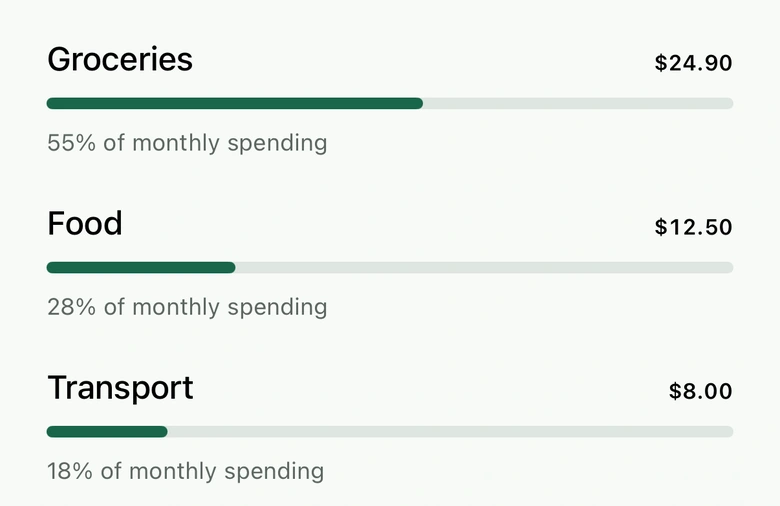
In Reports, Groceries has the longest bar. The $24.90 supermarket trip accounts for 55% of the month’s spending. -
Find and correct an entry
In the ledger, select the month on the receipt. Tap Search notes or categories and type coffee. Tap the lunch entry, correct the amount and save. Close the search to see the updated monthly total.
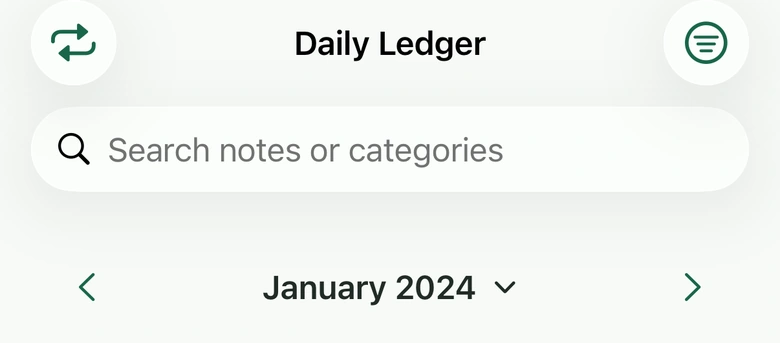
The arrows below the search field move between months.