 SHENDZO
How to scan multiple pages into one PDF on iPhone
For a two-page report, scan both sheets in Paper Desk before you tap Save. The free version lets you check the page order and send the whole report as one PDF.
Scan both sheets
Lay the report on a flat surface. Open Documents and tap Scan. Allow camera access if prompted. Fit all four corners of the first sheet in the frame, capture it, then do the same for the second sheet. Tap Save once both pages are in the scan.

Scan opens the camera. The Import button beside it is for files you’ve already saved. Check the page order
Tap the thumbnails below the scan to review each sheet. To rearrange them, tap Pages, drag a page by its handle, then tap Done. If a sheet is missing, open the three-dot menu and choose Scan more pages.
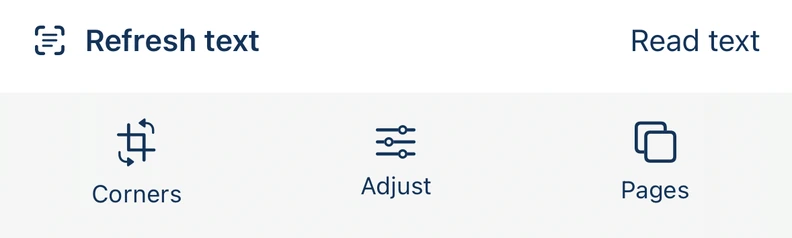
Pages is the rightmost button in the bottom toolbar. Prepare the PDF
Tap the square with the upward arrow at the top right. Leave the format set to PDF and enter a file name such as “October report”. All pages are selected by default. Tap Prepare export.
Save the file
Tap Share files, then Save to Files. Pick a folder and tap Save. Open the PDF in that folder and turn to the second page to check the result.
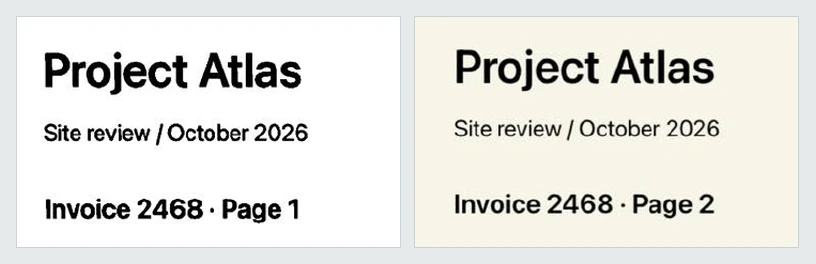
Two pages from one PDF exported by Paper Desk. Both show invoice 2468, with page 1 followed by page 2.