 SHENDZO
How to merge two scanned documents into one PDF on iPhone
Suppose a contract and its appendix are saved separately in your Paper Desk library. With Paper Desk Pro, you can make one PDF for the recipient and keep the original scans.
Select the contract and appendix
Open Documents and tap All documents so you can see scans from every folder. Open the three-dot menu at the top right, tap Select documents, then select the contract and its appendix.
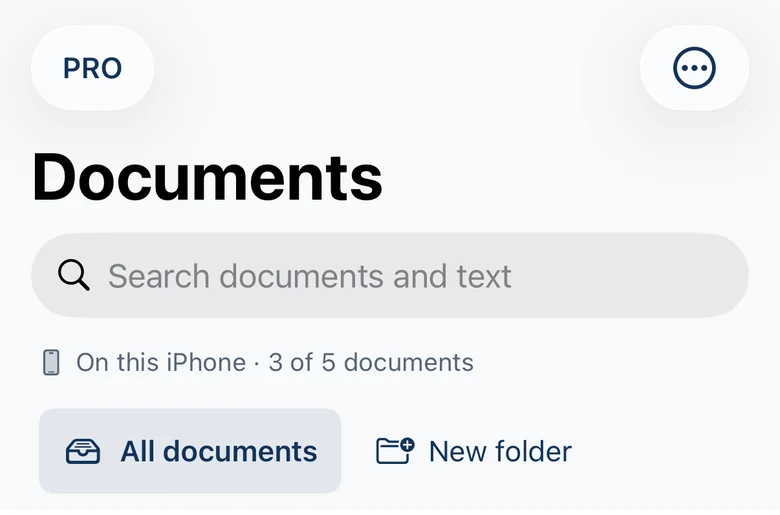
All documents includes scans from every folder. The three-dot menu opens the selection options. Merge the scans
Once you select two documents, tap Merge at the bottom of the screen. Paper Desk opens a new file called Merged document. Its pages follow the order of the documents in your library.
Put the appendix last
For a two-page contract and a one-page appendix, the counter above the scan should show three pages. If the appendix comes first, tap Pages. Drag the appendix page to the end using its handle, then tap Done.
In the finished PDF, the contract occupies pages 1 and 2. The appendix starts on page 3. Save the combined PDF
Tap the square with the upward arrow at the top right. Choose PDF, leave all three pages selected and name the file “Contract and appendix”. Tap Prepare export, then Share files. Choose Save to Files, pick a folder and tap Save.
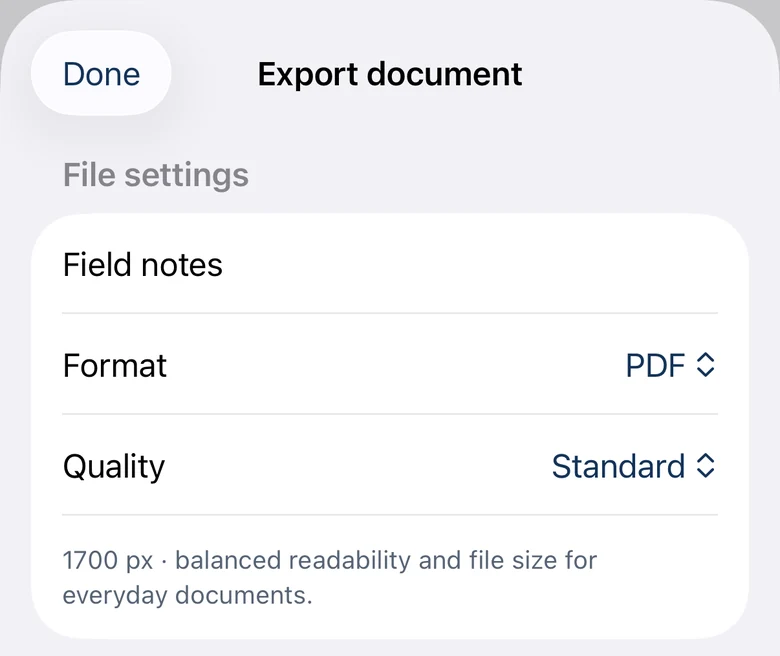
The export screen shows the file name above the format. You can change both before sharing.