 SHENDZO
Photo library
How to choose the best shot from similar photos on iPhone
Compare two shots at the size you plan to view or print them. A thumbnail can hide motion blur or a blink.
Five photos from a birthday can look identical in the grid. Open your two favorites and zoom in on the faces. One might be sharp, while the other catches everyone laughing but blurs the birthday guest’s eyes. The sharper shot may be better for a print. The second might be the one you want in the family chat.
Decide what you want from the photo
Compare one detail at a time, starting with the main subject’s face and then checking the edges. Two photos can both be worth keeping if you have a use for each. Apple Photos can merge duplicates, while neighboring frames of the same scene often call for a closer look.
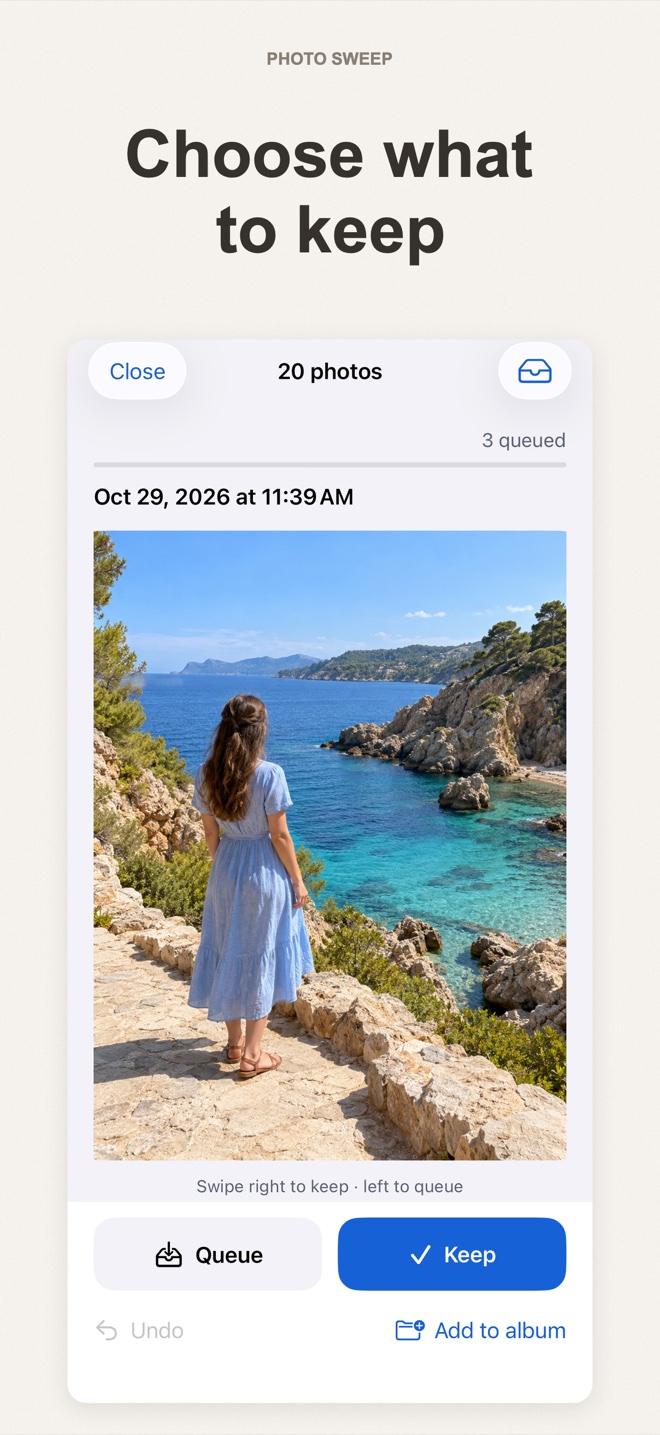
In our app Photo Sweep, you can compare similar candidates side by side and inspect the details before adding a shot to the review queue. Treat the matches as suggestions and make the final choice yourself.
Take one last pass
Look through the queue before confirming deletion, especially if you sorted several events in one sitting. If the shot you planned to print or send is there, take it out of the queue.
Photo Sweep