 SHENDZO
Photo library
How to organize your iPhone photos by month
Pick one finished month and work through it. Trips and bursts of similar shots are easier to make sense of in context.
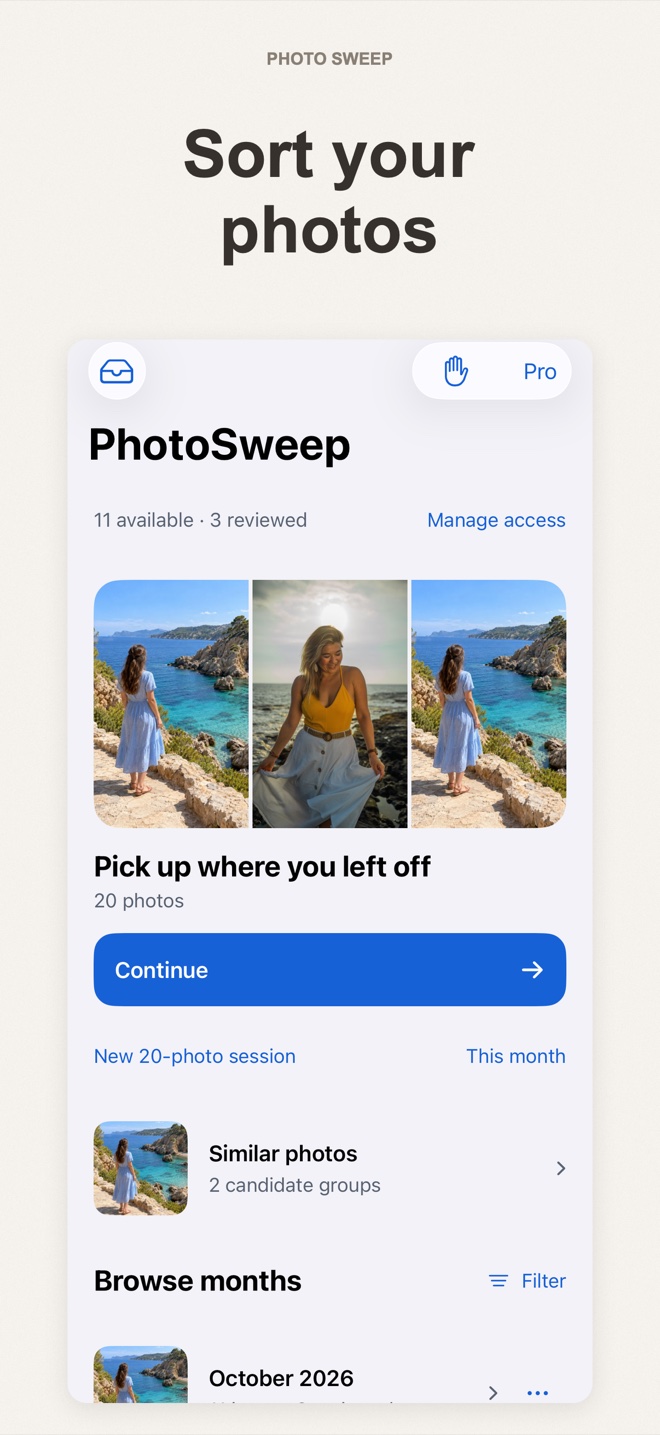
In a crowded library, holiday photos sit next to screenshots, work pictures and shots of items in a shop. Start with a month that’s already over. It’s easier to remember an event in context and work out why you took each photo.
Work through one event
Say you took eight photos on a walk. Pick one you’d send to a friend. Then look for other angles that capture something the first shot misses. Now you have a reason for keeping specific shots, and the rest are easier to review.
In our app Photo Sweep, you can browse a month and return to a saved review later. Check your queue before confirming deletion. If you use iCloud Photos, the change applies to devices connected to the same library.
Check the month again
Look through what’s left and see whether it still tells the story you want to keep. Deleted shots can remain in Recently Deleted, so the number of photos you removed does not tell you how much storage you’ll free immediately.
Photo Sweep