 SHENDZO
Documents
How to get a clear document scan on your iPhone
When the small print is blurry or your phone casts a shadow across the page, the fix often starts with the light and your distance from the paper.
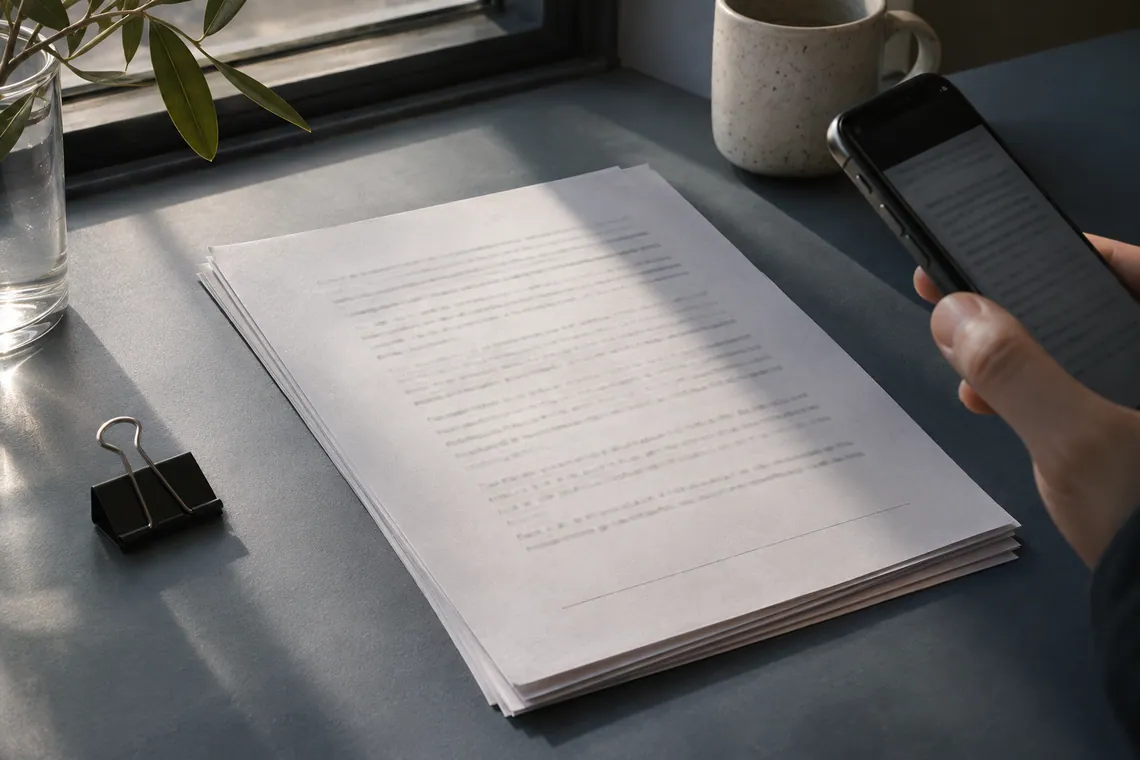
A page can look fine at thumbnail size and still be hard to read when opened. Account numbers, fine print and faint signatures are often where the problem shows up. Check those details before you send the file.
Move the light to one side
Put the sheet on a table near a window. Light from behind you can make your hand or phone cast a shadow over the page. Turn the paper or move until the light is more even. On glossy paper, changing the angle to the window can also reduce glare.
Give the camera room to see the page
Flatten folded corners and hold the phone above the sheet, roughly parallel to the paper. Move back far enough to fit all four edges in the frame and allow the camera to focus. Pause briefly before capturing the page.
A pale sheet is easier to distinguish against a darker surface. In our iPhone app Paper Desk, you can check and adjust the four corners after capture. Keep signatures and notes at the edge inside the crop.
Read the result at full size
Zoom in on the smallest print and try reading it without looking at the original. Check the numbers and make sure a shadow has not hidden any letters. If you have to guess a digit, try the page again in different light.
Black and white can make some text easier to see, while pale stamps or colored annotations may be clearer in color. Compare the finished page with the paper and choose the version that preserves the details you need.
Paper Desk
Paper Desk brings pages together in a PDF and lets you check the edges before sharing. Multiple-page scanning is free.