 SHENDZO
Mobile video
Can the iPhone 13 film with both cameras at once?
In a birthday video, you can usually tell who held the phone by the singing. Could the front camera get the singer into the shot too? We tested dual-camera recording on an iPhone 13.

Apple’s Camera app on the iPhone 17 can film in both directions at once. On the iPhone 13, we used our own app, Dual Camera. The front and rear cameras ran together, and the phone saved a 12-second video with an audio track.
To try this on your phone, you’ll need iOS 17 or later and an iPhone that supports simultaneous front and rear recording. Open the app’s settings to see which resolutions and frame rates you can use with both cameras running.
Where to put the person holding the phone
Suppose you’re sitting across from your sister when the cake comes out. With Circle selected, point the rear camera at her. Your face appears in a little window over the picture. Drag it onto a patch of wall above her shoulder so there’s room for her to lean over the candles. Then look at your own face. Holding the phone low enough to see over it can give everyone a fine view of your chin.
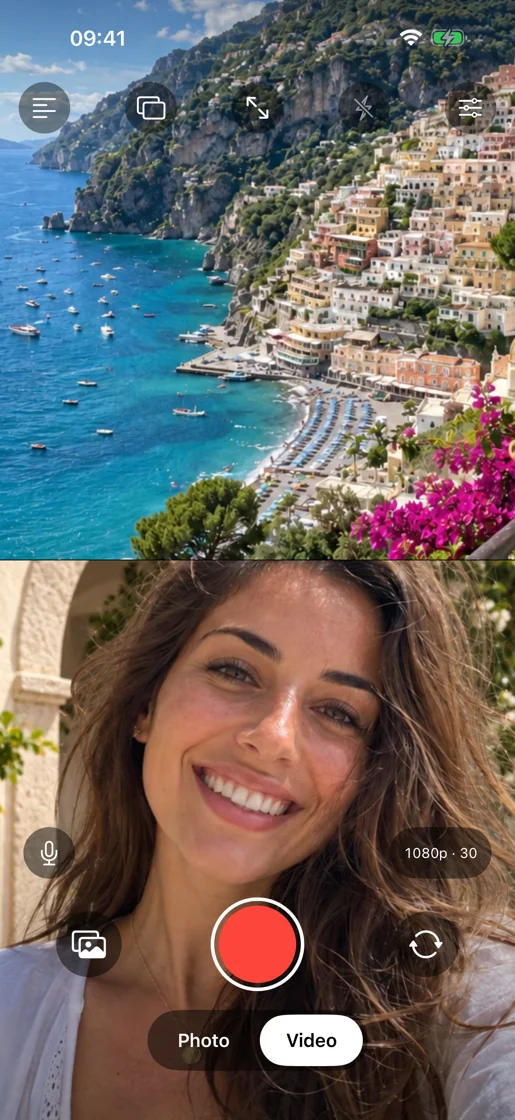
For a toast, try Top / bottom before you start recording. Each face gets half the picture. When your sister realizes halfway through the story that it’s about her, you’ll have that look and the person telling the story in the same shot.
What goes in the family chat
Turn on Save composition in Settings before you record. That gives you the clip with both views already in place. If you’d also like to cut between the speaker and your sister later, turn on the options to save each camera’s video separately.
While someone is looking for the matches, record a few seconds from your seat and play it back with the sound on. If it’s hard to hear someone across the table or your face slips out of the circle when you laugh, you can move your chair closer or hold the phone a little farther out before the singing starts.
Dual Camera
Circle and Top / bottom are free. Recordings carry a watermark unless you have Both Sides Pro, available by monthly subscription or as a one-time purchase for lifetime access.