 SHENDZO
Documents
How to scan multiple pages into one PDF on an iPhone
A contract and its attachments can easily end up as separate files. One PDF keeps the pages together and gives the recipient a clear reading order.
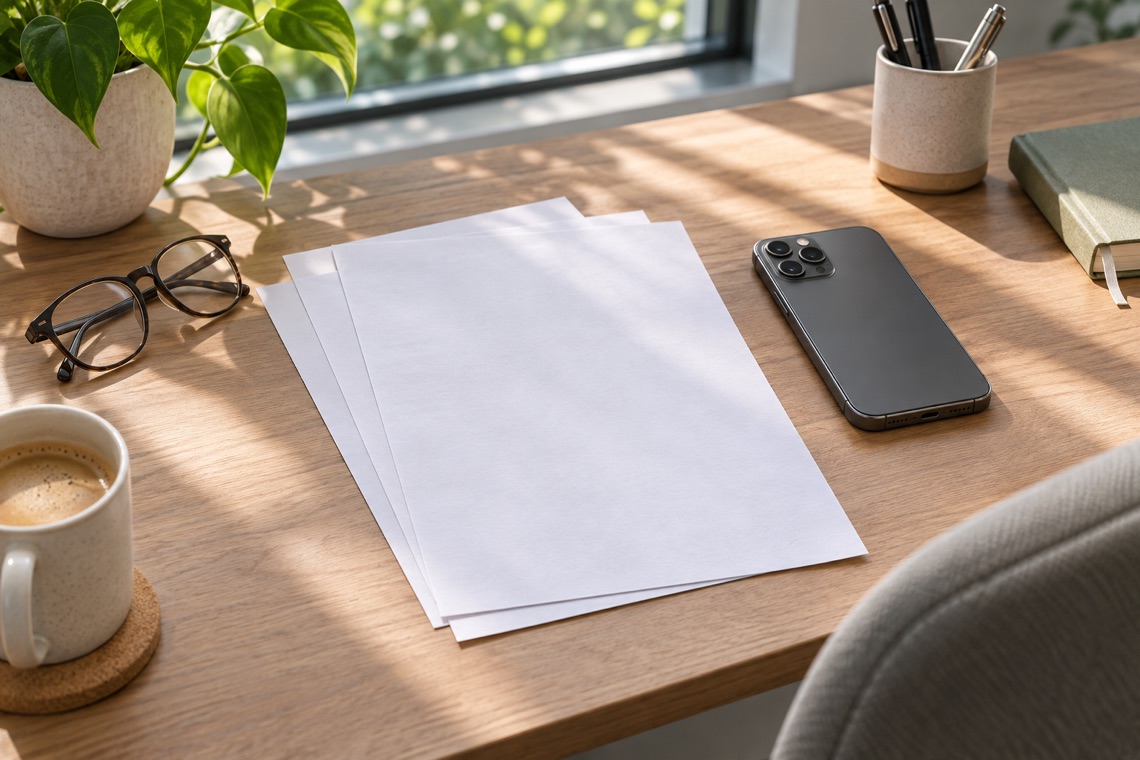
Say your landlord asks for the signed lease and its attachment. Six separate photos will do the job, but the recipient has to open each one and work out where it belongs. A single PDF is easier to read in sequence and easier to check before you send it.
Put the sheets in order first
Arrange the pages in reading order. Look at both sides and remove clips that cover text. Place each sheet on a flat surface near a window, with enough room around it to see all four edges.
For a longer stack, move each captured sheet into a second pile. That makes a missed reverse side easier to spot when several pages have the same heading.
Keep the pages together
In our iPhone app Paper Desk, you can scan sheets in one session and export them as a PDF. You can adjust page edges, rotation and order before sharing. Scanning several pages and exporting a PDF are included in the free version.
If the sheets already exist as separate Paper Desk documents, merging those documents requires Pro. Before exporting, check that the first page is first and that the signed page and any attachment are present.
Open the attachment before sending
Open the PDF from your email draft. Scroll to the end, zoom in on the signature and make sure the text is readable on screen. The extra check helps when several versions of the same contract are sitting in your files.
Your iPhone can also scan multiple pages using Notes or Files. Apple explains both options. Use whichever makes the resulting file easiest for you to find and share.
Paper Desk
Scan multiple pages and share one PDF with the free version of Paper Desk. Merging separate documents is available in Pro.